Since the previous section covered the integration of external hardware, we will now focus on operating the server from outside the user interface, as the Octoprint server has so far only been controllable through that interface.
In addition, we will introduce an automation feature that turns off the printer after a print job is complete to save electricity.
Telegram
With the Telegram plugin, the status of the 3D printer can be monitored and controlled via the widely used messaging service Telegram.
Setup:
Open the Telegram app and search for “BotFather” in the search bar at the top left. You can use this bot to create and manage new bots.
Start the configuration with
/start
This will list all available commands. Now continue by typing /newbot
and follow the steps for naming the bot.
After successful configuration, you will receive a message containing an API key; copy and paste it into the text field in the plugin settings.

Figure 7: Plugin settings menu after successful configuration
Features:
After successful configuration, you will now receive a status message with an image from the camera after a print job is started and at set intervals.
You can also control the printer directly via chat, for example, to set the preheating temperature or print files.
You can view an overview of the commands by tapping the three bars next to the text input field.
More information about the plugin
Octoapp
Octoapp is a mobile application available for all major smartphone operating systems. This app offers all the key features of the browser interface, but its operation is designed for intuitive smartphone control.
Additionally, you can create widgets on your device’s home screen to keep track of things without having to open the app first.

Figure 8: Octoapp user interface
MQTT
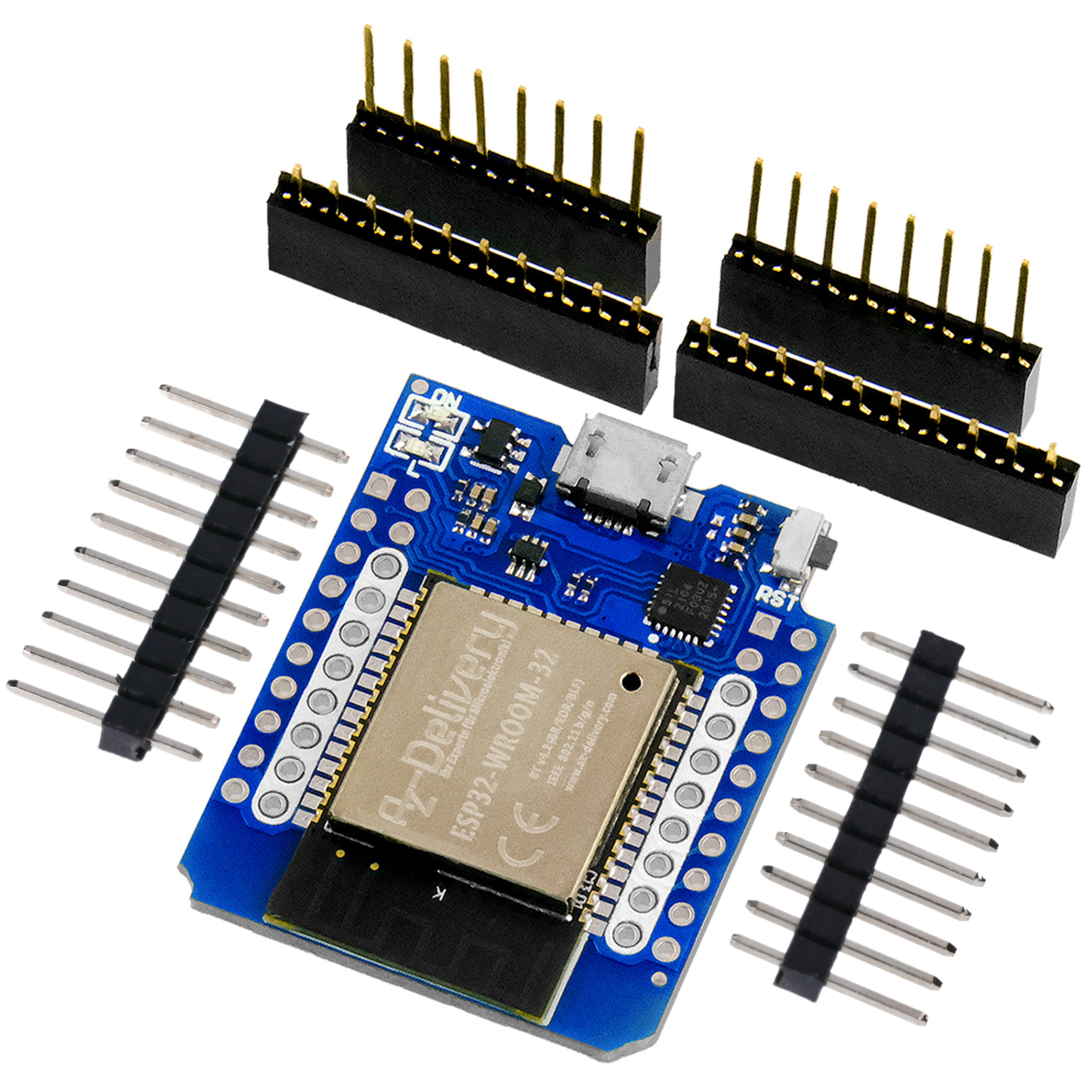
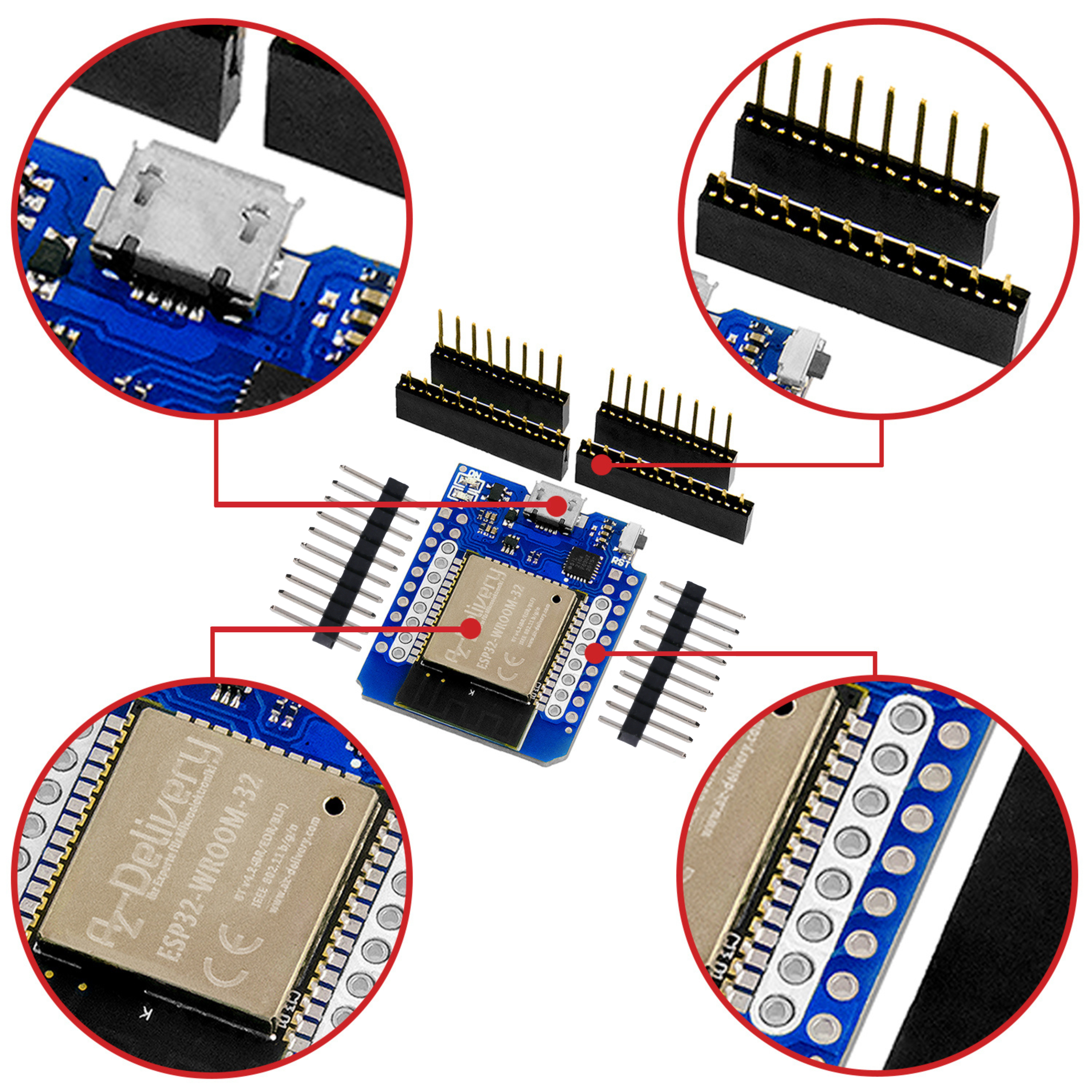
This plugin allows information such as print bed/print head temperature, progress, etc., to be transmitted to an MQTT server. Using a Wi-Fi-compatible microcontroller such as the ESP32 or ESP8266, it is possible to retrieve this information and display it on a screen, for example.
An external MQTT broker is required for the MQTT functionality. Detailed instructions for installing the Mosquito and Node-RED software on a Raspberry Pi can be found at the following link.
More information about the plugin
Smart Home Automation
Integration into a smart home system offers the advantage of being able to control smart outlets and lights based on the printer’s status.
For example, the 3D printer’s power outlet can be turned off once printing is complete to reduce unnecessary power consumption.
In a blog series on smart homes, the open-source platform OpenHAB . Using an MQTT bridge, it is possible to display a wide range of printer information.
Nearly all smart home systems offer an MQTT interface, making this the most universal option.

Figure 1: Screenshot from the Home Assistant dashboard
The Home Assistant software offers another option. Here, you can integrate the Octoprint server directly as a device. Thanks to the Auto Discovery feature, the server is automatically detected and can be added with a single click.
In Home Assistant, you can also display the Octoprint webcam as a video source in the dashboard.

Figure 2: Home Assistant automation for turning off a power outlet
PSU
A smart home system isn’t strictly necessary to automatically turn off the 3D printer after a successful print.
The The Octoprint community offers a wide variety of plugins for this purpose, which can be used to control popular smart plugs.
But also via the previous part is also available via a relay on the supply line.
Conclusion
With these extensions, you can control your 3D printer more intuitively and easily. All of the plugins presented here offer a wide range of settings, which are best optimized through experimentation to take full advantage of their full functionality.
In the following section, we will install the Klipper firmware, which can improve print quality and speed.
Have fun building it :)
This blog is not affiliated with Telegram and is neither sponsored nor supported by Telegram. All brand names, logos, and trademarks used in this post belong to their respective owners and are used solely for descriptive or identification purposes.