
Modern 3D printers are now equipped with built-in small servers that allow users to conveniently control both the printer itself and print jobs via a network connection. This significantly simplifies the printing process and offers additional features such as remote monitoring.However, older 3D printer models are still widely used, especially in the hobby sector. Many of these devices do not come standard with such integrated control, which makes operating them somewhat more cumbersome compared to newer models. Nevertheless, this does not mean they are obsolete or unusable. With targeted modifications and upgrades, such as retrofitting the Octoprint server based on a Raspberry Pi, as described in Part 4 of the introductory series, even older 3D printers can be adapted to modern standards. This allows them to keep up with newer printers in many respects.
After Part 5 of the beginner tutorials, this section focuses on other interesting OctoPrint plugins. These extensions are designed to make the printing process even easier and more intuitive. Among other things, they involve integrating external hardware, which enables additional functions and further improves the operation of the 3D printer.
Plugins
All plugins can be easily installed using the built-in plugin manager. Alternatively, you can find additional options and information at the links below.
UI Customizer & Dashboard

Figure 1: Example Octoprint Dashboard
These plugins allow you to customize the user interface.
You can choose from a variety of designs in the UI Customizer and select the content displayed as you wish. This gives you a better overview and allows you to use the user interface in a more comfortable dark mode.
The Dashboard plugin allows important information, such as progress, to be displayed as bar or pie charts.
More information about the plugin(UI Customizer)
More information about the plugin(Dashboard)
Bed Visualization

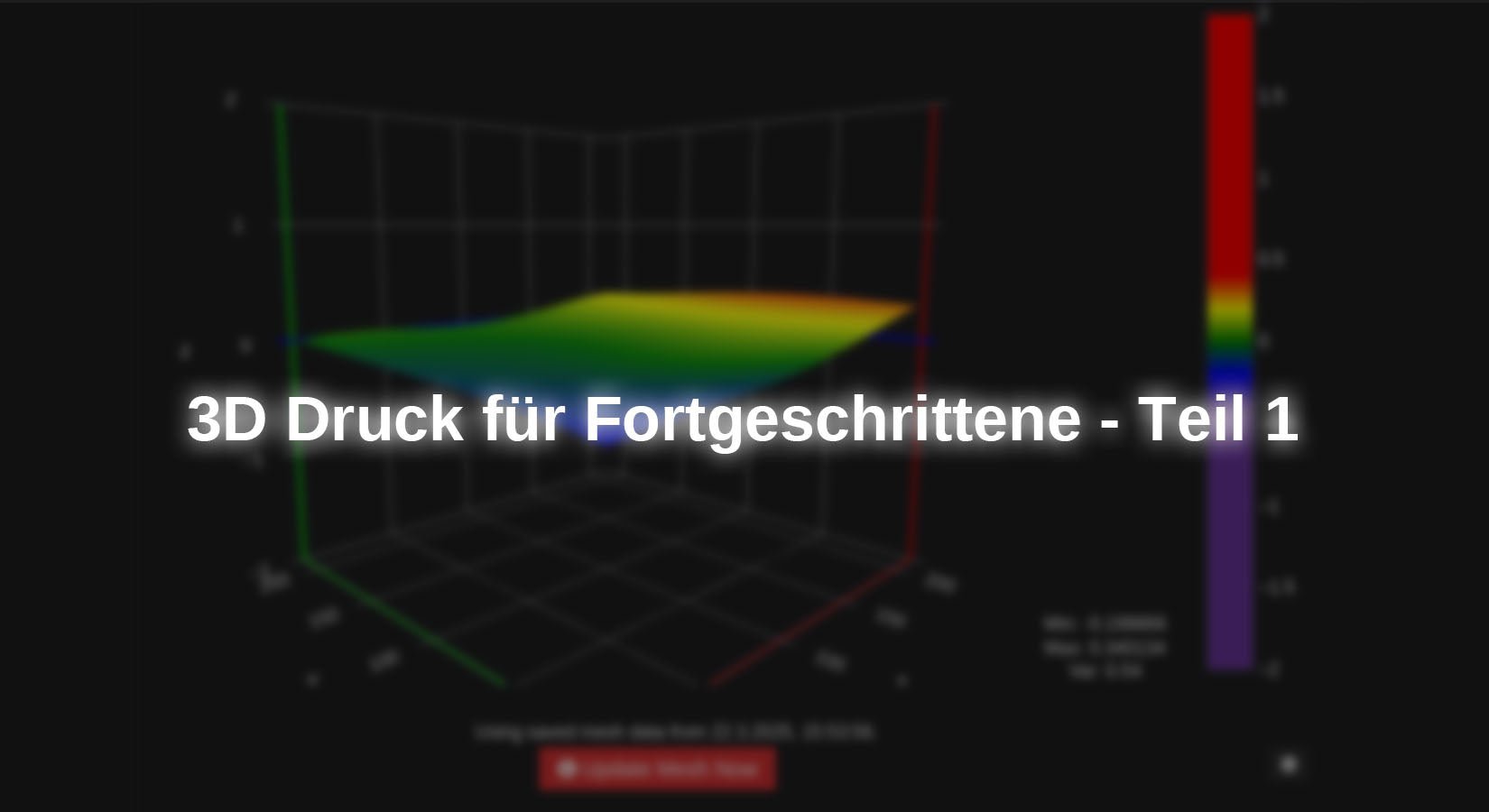
Figure 2: Print bed rendered by the plugin
The Bed Visualization Plugin for OctoPrint is a useful tool for visually representing the print bed surface.
Using the points determined by 3D Touch, this mesh is graphically displayed to optimize the bed leveling and reduce the need for software-based adjustments. Additionally, this tool can be used to determine whether the print bed needs to be replaced due to excessive warping.
In some cases, the script used to collect the data may need to be adjusted in the settings. See Documentation.
More information about the plugin
WS281x Status
The plugin allows you to display the status of the 3D printer using addressable LEDs.
These LEDs are connected directly to a GPIO pin on the Raspberry Pi and can visually represent various printer statuses. For example, the heating or cooling process can be visualized with a color gradient from blue to red, the print progress can be displayed using changing colors or a dynamic bar, and connection errors can be signaled by a red flashing LED. The current printer status is also immediately apparent: a yellow flash indicates a pause, a red flash signals an error, and a steady green light indicates that printing has been successfully completed.

Figure 3: Overview of the settings menu
Of course, you can also change the effects and colors to customize the display. Compared to the WLED Connection plugin (featured in DIY Lighting with WLED Part 3), which uses a separate ESP32 or ESP8266 microcontroller for LED control, the WS281x Status Plugin works directly with the Raspberry Pi on which the server is installed.
The following modules are recommended for this:
The 5V pin on the Raspberry Pi can supply the full power output of the power supply, minus the Raspberry Pi’s power consumption. Since the board However, since it requires more power during bootup, it is advisable to use an external power supply if you have a large number of LEDs.
A tool for calculating power consumption can be found under the Utilities menu item in the plug-in settings.
Further information about the plugin
Octorelay
This plugin allows you to control relays, for example to turn lights or fans on and off. Small icon buttons are displayed in the row with the Octoprint logo for control purposes
The functionality corresponds to that described in Section 5. part , but the user interface—in the form of clickable icons in the fixed bar at the top—is easier to use.

Figure 4: Sidebar with lights and fan icons for relay control
In the settings, you can customize the icons as desired. To change the transparency, you can simply use the CSS command style="filter: invert(0.4)" if you're using a dark user interface. For the standard white GUI, use opacity instead of invert. With both commands, visibility can be specified as a percentage. This makes it easy to quickly distinguish between an activated and deactivated relay later on.
If you want to use other symbols, you can either use the HTML symbol library or the Unicode emojis(Use only decimal numbers!).

Figure 5: Settings menu of the Octorelay plugin
You can also configure the relays to switch automatically based on the printer’s status; for example, a lamp can be turned on automatically after printing begins.
More information about the plugin
Enclosure
This plugin allows you to control sensors and fans/lights and connect them intelligently.
As the name suggests, this plugin enables you to integrate a case into Octoprint. Not only is it possible to control actuators such as lighting and small heating elements to maintain a constant internal temperature, but temperature and touch sensors can also be integrated to simplify workflows.
For example, a simple pushbutton can be connected as an "emergency stop button" to immediately pause the printer in the event of a failed print, without having to open the online user interface.
The following components are required for this:
Pushbutton
Optional: wiring harness or jumper wire
Configuration:

Figure 6: Configuring the pushbutton as a pause switch
When it comes to lighting and ventilation, this plugin offers the PWM function as an advantage over the Octo Relay plugin already presented. This is because PWM allows you to control brightness and speed.
Another interesting feature is the integration of a temperature sensor. This allows not only the temperature—and, depending on the sensor, the humidity—inside the enclosure to be displayed, but also enables the duty cycle of a PWM GPIO to be controlled accordingly, thereby heating or cooling the enclosure to maintain a constant internal temperature.
Direct PWM speed control is also possible via the Enclosure Plugin tab; however, here only the PWM duty cycle can be entered as a percentage, unlike with other plugins such as the Fan Controller plugin , using a slider.
Please note that PWM control requires the use of a transistor instead of a relay!
You can find a pinout of the Raspberry Pi boards at the following address.
You can find suitable temperature sensors here.
More information about the plugin
Conclusion
By integrating external hardware, the 3D printer can now be controlled efficiently, and its status can be seen at a glance thanks to the LED strip. In addition, the optimized server user interface makes operation even easier. These improvements already represent a significant enhancement.
In the next part, the focus will be on automation and optimized control of the printer outside the home network.
Have fun building it :)




1 comment
Philipp
Vielen Dank für den tollen Beitrag. Hab mit Octoprint und meinem damaligen Ender3 sehr gute Erfahrungen gemacht.