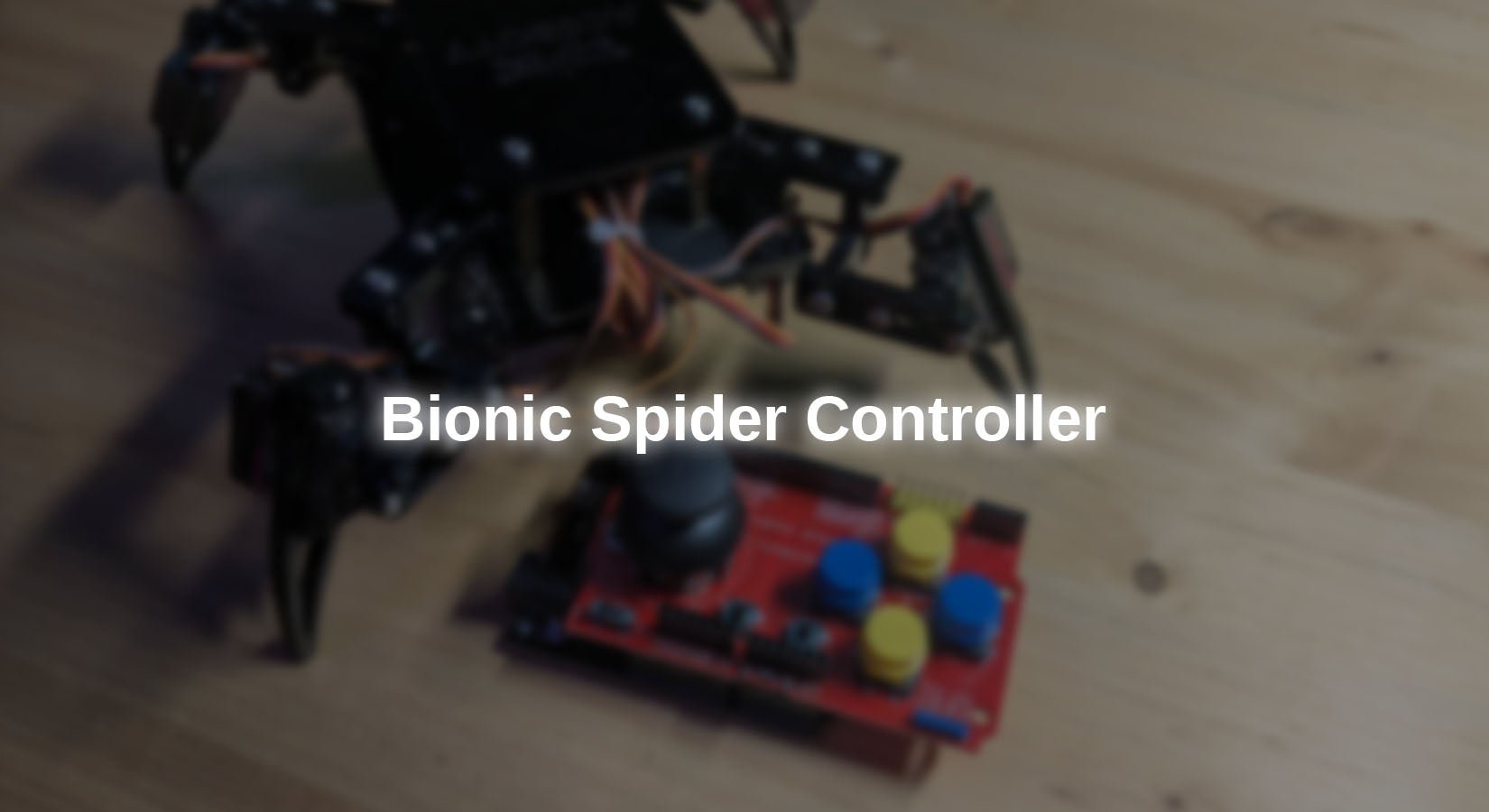
In the Bionic Spider Robot Kit you have already learned how the bionic spider works and have already implemented a few projects with it. Most recently, control of the robot via a smartphone app was added.
Since the control via the touch display is not particularly nice, this blog post will present an alternative control with a joystick.
Hardware
There are two versions available as a joystick, one can KY-023 module can be used. However, since a lot of cabling would be necessary here, this is recommended PS2 Joystick Shield, which is also directly connected to a microcontroller Uno Layout can be inserted.
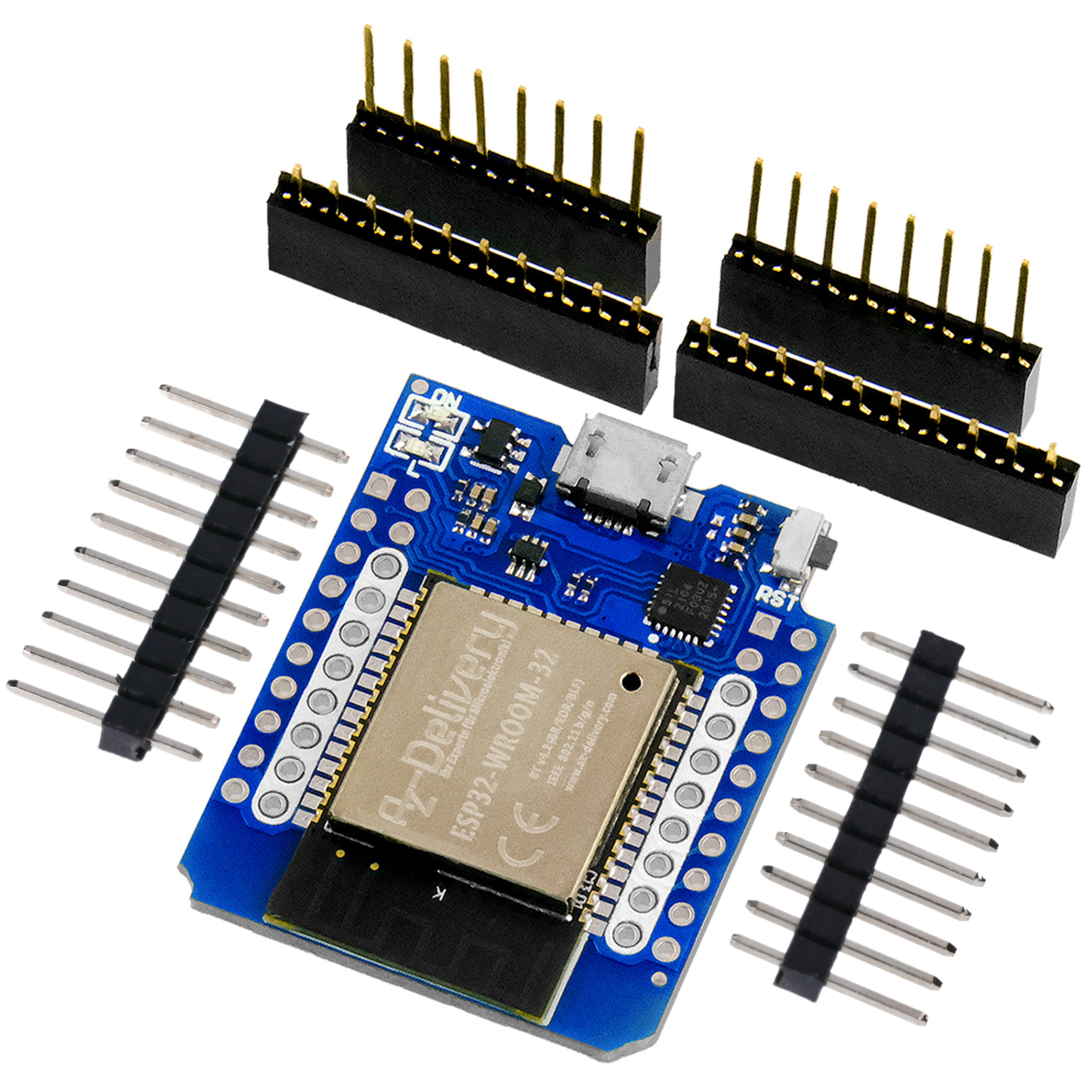
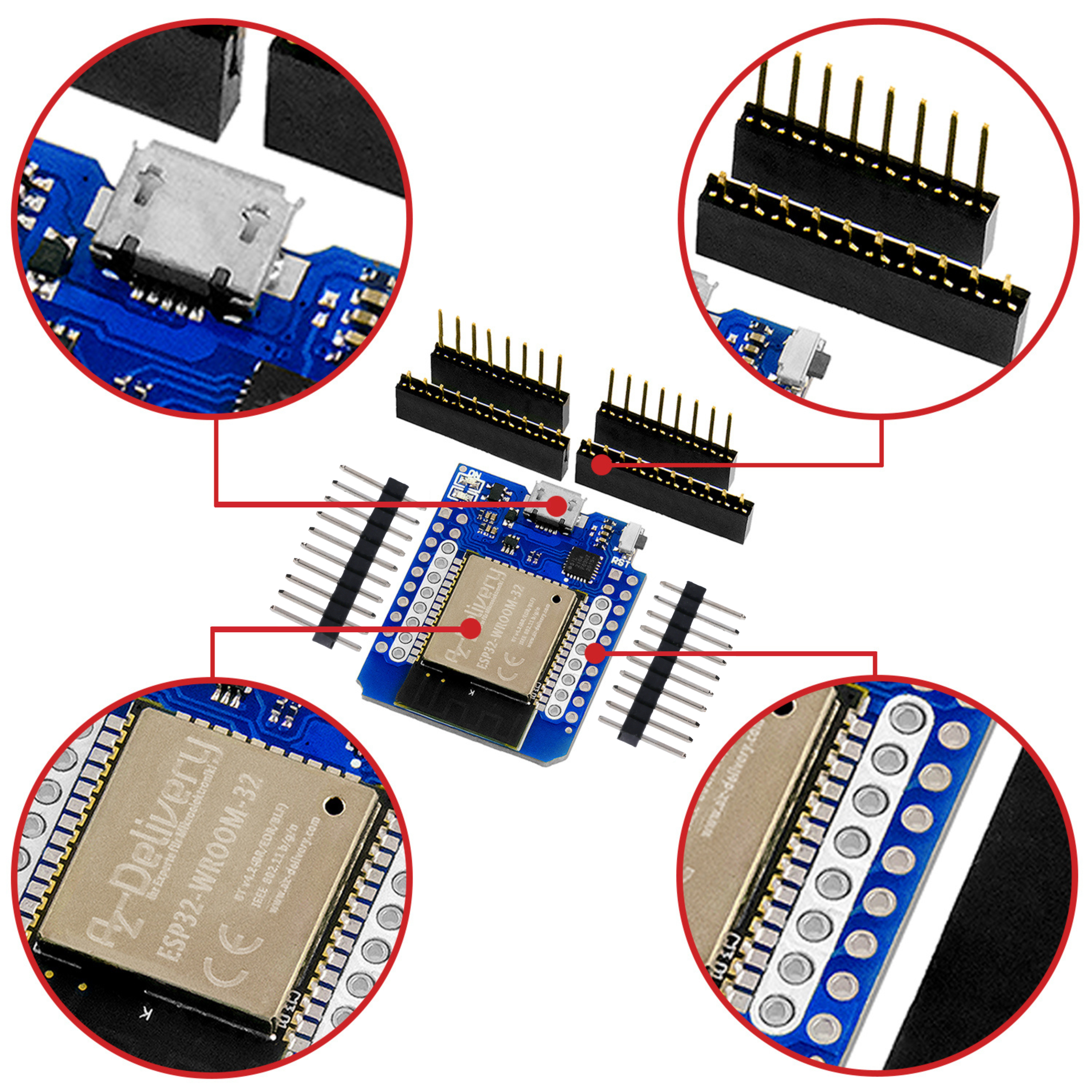
Since the microcontroller has to communicate with the robot, a microcontroller with WiFi functionality is required. Furthermore, two ADCs are required for each of the X and Y axes, which is why an ESP32 must be used here.
(The ESP8266 only has one ADC input.)
To realize the project you need:
(optional) 9V block battery + Battery clip
and of course an assembled one Bionic Spider Robot Kit
Since the analog inputs of the two joystick axes are on GPIO 2 and 4, which are connected to the ADC2, they cannot be used at the same time with the WLAN module. The connections IO 34 and IO35 (ADC1) are located directly next to them, so functionality can be easily established using a wire bridge.

Figure 1: Wire bridge between the connections
Connect the connectors as shown above.
Since the on-board LED is connected to GPIO 2, the pin must be removed here, otherwise the connection would influence the value of the X-axis voltage.
The same applies to pin D12, as this disrupts the boot process and therefore booting with the shield attached would not be possible. The middle button of the joystick is located at this connection, which means it can no longer be used. If you still want to implement it, it must be reconnected to a free port.

Figure 2: Shield with modifications
The shield can simply be plugged onto the D1 R32. Make sure the little switch in the left corner is on 3v3 otherwise the ESP32 could be damaged by the excessive voltage of 5V.
Software
If this is your first time programming an ESP32/ESP8266 in the Arduino IDE, copy the following URLs in the Arduino IDE under: File->Preferences->Additional boards manager URLs: https://dl.espressif.com/dl/package_esp32_index.json
http://arduino.esp8266.com/stable/package_esp8266com_index.json
and install the ESP32 and ESP8266 packages in the board administration.
The ESPNOW protocol, which is easy to use thanks to the integrated library, is suitable for transferring data between the microcontrollers.
The advantage of this protocol is that the data packets can also be transmitted without a server and WLAN, meaning communication is possible at any location and without additional hardware.
Furthermore, the packets are sent out simply, without complicated authentication as with WLAN, which means that very fast transmission can be achieved in almost real time.
The hardware addresses, the so-called MAC addresses (Media Access Control), of the two devices are required for communication. These are located in a protected part of the memory and can be clearly assigned to a device.
The packages can be sent to the correct recipient via this.
1 Determine the MAC addresses
Since the addresses are in protected memory, they can also be read out with a separate short program, as this does not change when the memory is rewritten.
Load the program onto the two microcontrollers:
|
#ifdef ESP32 |
You can get the code here(macAdress.ino) download.
After the programs have been loaded onto the microcontroller, the corresponding MAC address is now displayed in the serial monitor (baud rate: 115200). Write these down for the following program.
2 code controllers
The joystick module has 6 individual buttons and a joystick with two axes and an integrated button.
In order to keep the project as simple as possible, only the direction of movement or the pressed buttons are transmitted as a string as follows:
Joystick up: CMD_FWD
Joystick down: CMD_BWD
Joystick to the right: CMD_RGT
Joystick to the left: CMD_LFT
Button A: BTN_A
Button B: BTN_B
etc...
To ensure that a new command can only be sent if the previous one has been executed, an acknowledgment is sent by the recipient. Only when this has been received can a new command be sent.
To ensure that communication is not completely blocked in the event of an error, feedback is only required after successful data transmission to the recipient. Additionally, the status will be automatically reset after 10 seconds if no confirmation has been submitted.
Code:
In order to maintain clarity, only excerpts are shown here for explanation. The complete code can be downloaded at the end.
|
#define X 34 |
At the beginning, the GPIO pins of the respective button/joystick axes are defined so that they can be used more easily and clearly later in the program.
The MAC address of the receiver is then defined; this must be in the hexadecimal format shown with 0x as a prefix:
A4:CF:... -> 0xA4, 0xCF,...
The following variables are used for calibration and control to only send the commands if the previous one has already been executed.
|
void onDataRecv(const esp_now_recv_info_t *info, const uint8_t *data, int data_len) { |
These two methods are the callback methods for receiving and sending via ESPNOW.
The data received from the reception function is first stored in a char Array copied in order to then check the contents for the keyword. If this is received, the status will be restored true set and commands can be sent again.
The send callback function checks the status of the dispatch and sets the status variable false.false, so that a command is not sent again immediately afterwards. In addition, the current program running time is buffered using the millis() function, as the status should be reset after 10 seconds.
In setup() only the configuration commands of the ESPNOW library are called, followed by the calibration of the joystick axes and the GPIO configuration.
In loop() the values of the joystick axes are measured and the status is reset after 10 seconds.
The following logic evaluates the position of the joystick axes:
|
if(status) { |
First, it is checked whether the values of the axes exceed a limit value of 50. This is necessary because both the potentiometers through which the position of the axes is read out and the analog-digital converter (ADC) move minimally around the zero value (so-called drift), even in the zero position.
If an axis is above the threshold value, the values of the magnitude of the two axes are compared with each other. In this way, the axis that was moved the most and is therefore indicative can be determined.
After selecting the axis, you only need to check whether the value is positive or negative in order to provide the exact direction instruction ESPNOW to be able to send.
You can see the complete program here(Controller.ino) Download and load it onto the ESP32 by selecting the correct board and port.
3 code robots
The basic structure and in particular the ESPNOW Callback methods are almost equivalent to the previous controller program.
The main difference here is that in the receive callback method the data is not compared directly but is stored in a string
|
cmd = String(dataTemp); |
and then evaluated in loop().
In setup() the servo motors are also initialized and set to the zero position.
The evaluation then follows in the loop() cmd Strings:
|
if(cmd.length() > 0) { |
If the length of the string is greater than 0, it means that a new command has been written into the string. The content is then compared again with the respective command and the associated function of the robot is carried out.
After the evaluation, the confirmation is sent back to the controller.
In particular, the functions of the 6 buttons can be assigned any functions of the robot.
The methods of movements of the bionic robot are in a separate file from the last robot lesson. You can do this here (Commands.h) Download it and then copy it to the project directory.
You can see the complete program here (Spider.ino) Download and load it onto the ESP8266 by selecting the correct board and port. Don't forget to copy the robot movements file mentioned above into the directory
Conclusion
In this blog post, the joystick shield and an ESP32 D1 R32 became a fully functional controller for the Bionic Spider built, which can transmit commands to the robot via WiFi with ESPNOW.
The project also leaves a lot of potential for your own redesign, for example other commands can be carried out using the individual buttons, but programmed movement patterns can also be carried out at the push of a button.
Have fun replicating it :)